O/25.1
Click below to see the updates in version O/25.1
 PDS-3D Updates
Embedded Material within the GLB/GLTF Export
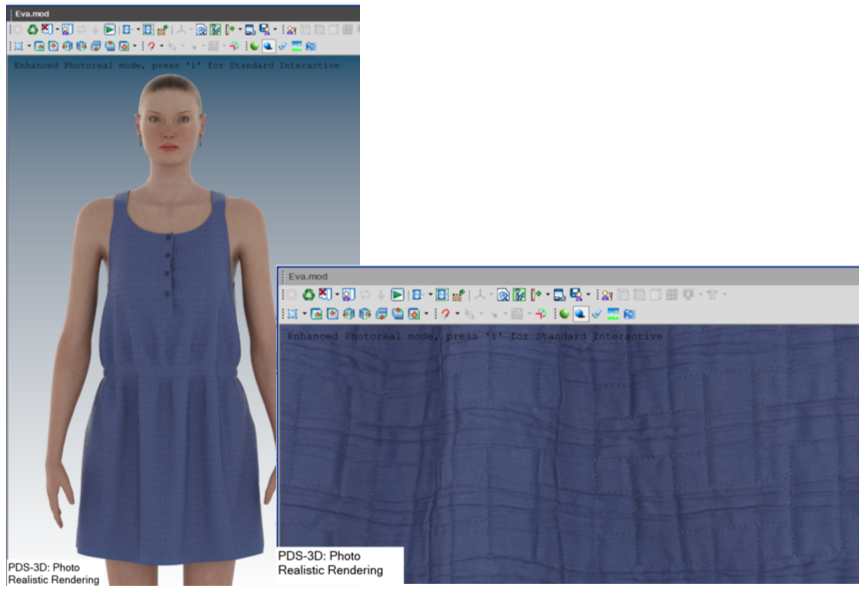
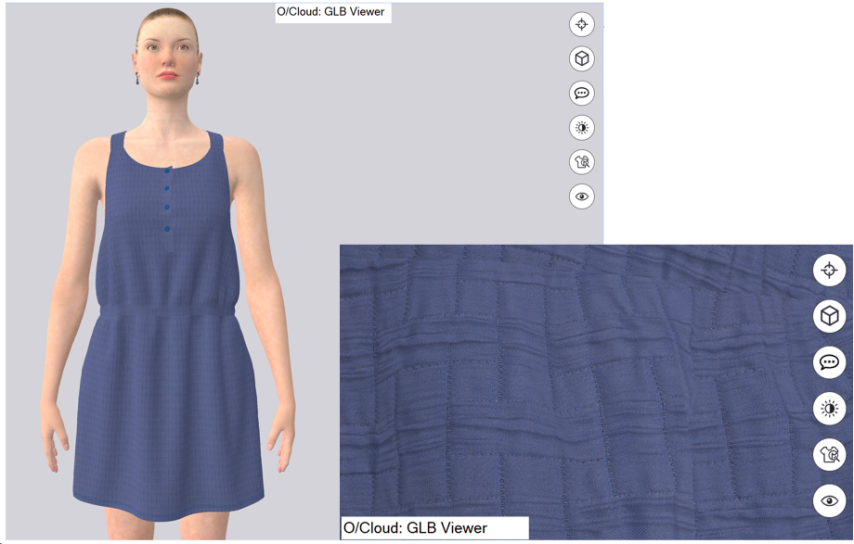
When a garment is uploaded directly from PDS to O/Cloud or exported manually from PDS in 3D, the GLB file now includes the associated materials for accurate representation.
This ensures the correct visualization of garment materials, capturing not just textures and colors but also their physical properties, leading to more realistic and accurate digital presentations.
Support Nvidia RTX 50XX Series Graphic Cards
Introduced support for the latest Nvidia 50XX graphics cards for PRR rendering.
Allows you to use the latest Nvidia GPU technology, 50XX graphics cards for Photo Realistic Rendering
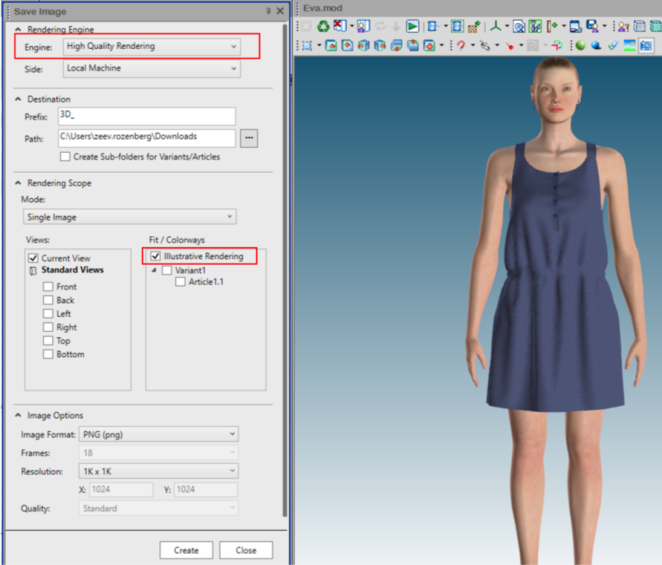
Illustrative Rendering is now available when saving Images
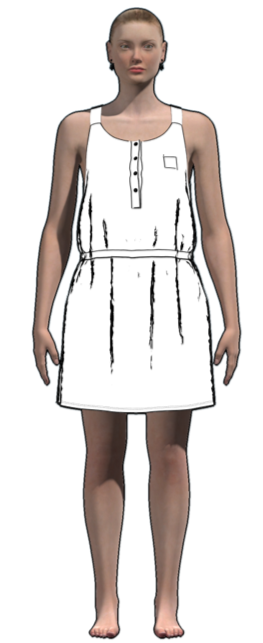
You can now save your image in an illustrative style.
This allows you to create illustrative images of your 3D garments, which can be used for presentations, marketing, or client communications, providing a clearer and more polished representation of the design.
 For more details: Illustrative rendering
You can now define seam types for the dart stitches in 3D
You can now assign different seam types such as "A above B" etc... for the stitch of the dart in 3D.
This is done in the Seam & Stitch Manager
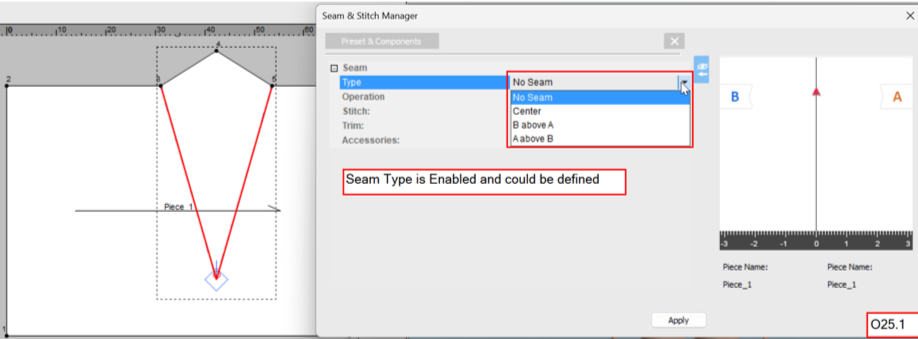
This was not available in earlier versions:
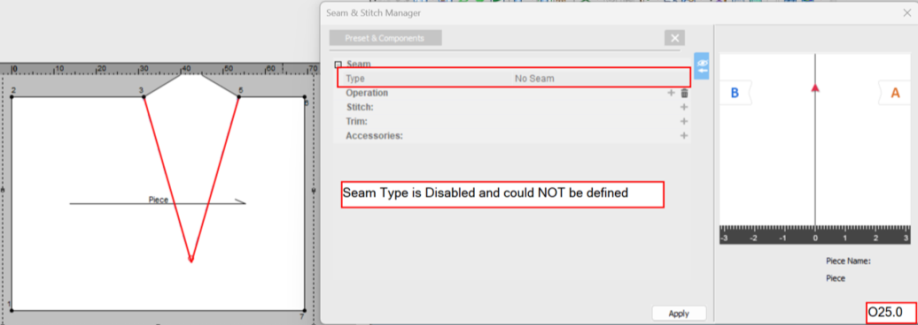
This functionality provides greater control of the dart, allowing better stitch visualization.
It allows real-world construction processes in the simulation, improving pattern and fit accuracy and production preview.
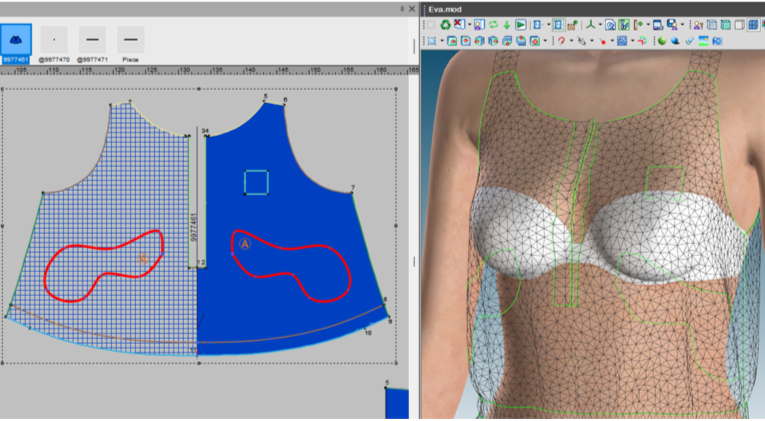
Internal lines` stitches are now displayed in Tension Maps, Springs View, Mesh View, and X-Ray Views
Displaying internal lines` stitches in Tension Maps, Mesh and X-Ray view helps users better understand the fit of the garment.
This allows more accurate assessments of the way the internal structure affects the overall fit and performance of the design.
 ––
––
New options for GLB export.
-
When using Nested Map Image the material is added automatically to the exported GLB file.
-
You can create a GLB file with many 3D objects instead of instances belonging to stitches and grouping these 3D objects to one mesh per stitch
This provides better compatibility with 3rd party software.
It reduces the time to make this manually using the 3rd party software
Undo/Redo of the Simulation state
Undo and redo is now available for the simulation in the 3D window in PDS.
This allows you quick corrections and adjustments, saving time, and reducing repetitive actions.
PDS 2D updates
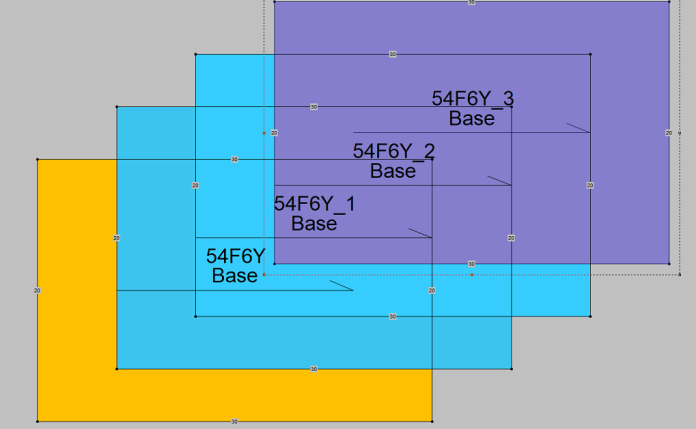
New piece copy option: Auto Renumber
A new option has been added to the Preferences under Main > Piece, allowing automatic numbering for copied pieces:
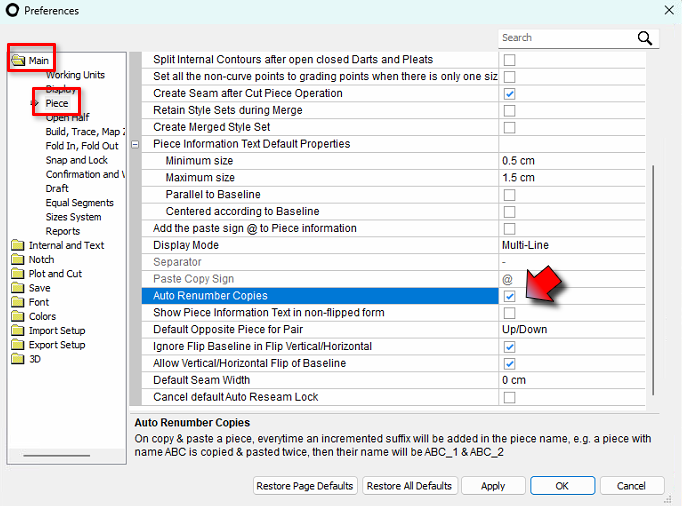
You can now choose between a standard copy or a copy that automatically renumbers the new piece with an incremented suffix.
If the original piece name ends with a suffix (e.g., `_1`, `_2`), the new copy will increment it by 1.
If no suffix exists, “_1” will be added to the copied piece name.
Change Global Internal Parameters: New Filters for Notches
New filters introduced in the Change Global Internal Parameters dialog allow you to affect only notches of specific dimensions such as depth, width and top width. The changes will be applied only to notches matching the definitions.
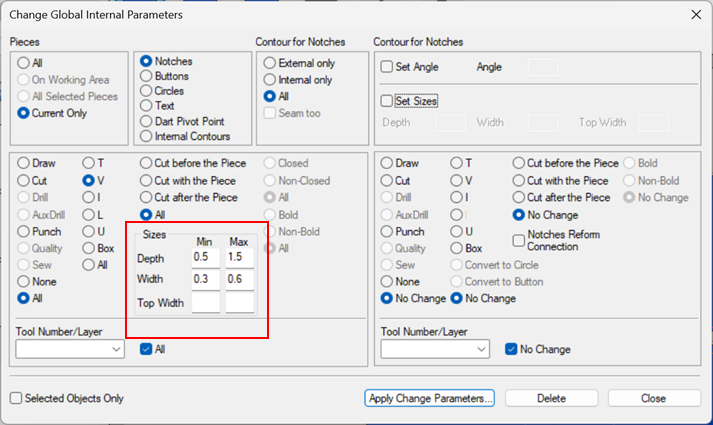
These parameters are also reflected by new Batch options that has been added to the @CHNT command, allowing added advanced batch functionality:
Batch command @CHNT new arguments:
/FILTER_MIN_WIDTH = <value>
/FILTER_MAX_WIDTH = <value>
/FILTER_MIN_DEPTH = <value>
/FILTER_MAX_DEPTH = <value>
/FILTER_MIN_TOPWIDTH = <value>
/FILTER_MAX_TOPWIDTH = <value>
Change Global Internal Parameters: New Filters for Buttons
New filters introduced in the Change Global Internal Parameters dialog allow you to affect only buttons of specific radius. The changes will be applied only to notches matching the definitions.
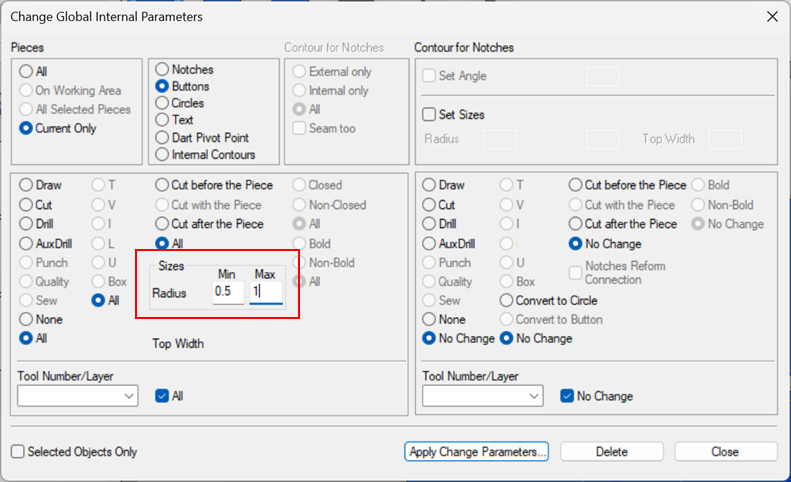
These parameters are also reflected by new Batch options that has been added to the @CHBTN command, allowing dded advanced batch functionality:
Batch command @CHBTN new arguments:
/FILTER_MIN_RADIUS = <value>
/FILTER_MAX_RADIUS = <value>
New batch command to remove Exclude in Marker
A new batch command has been added allowing you to remove Exclude in Markerproperty from all pieces of the selected files.
Batch Command: @UNCHECK_EXCLUDE_IN_MARKER
This command is also available in Optitex Script Builder overview
Restoring Old Open / Save as File Dialogs
By users request, old Open File and Save As dialogs can be now restored using an ini parameter.
To apply you have to add the line OldOpenSaveDialog = 1 under the section [CommonUI] in the Optitex25.ini file.
Where:
OldOpenSaveDialog = 0 = New dialog (default)
OldOpenSaveDialog = 1 = Old dialog
 Note: This affects both PDS & Marker
Marker Updates
Production Diagram: New Free-Text Tool in Marker
A new Free-Text tool has been added to the Production Diagram toolbar in marker.

The tool allows adding and manipulating texts in Production Diagram:
-
Add: Insert free texts anywhere in the diagram or inside pieces.
-
Edit: Double-click existing text to edit.
-
Move: Drag texts freely using the mouse.
-
Size & Rotate: Use the existing Marker text tool to define font size and angle.
Production Diagram: Work Modes
Work Modes are new display (F10) presets in Marker to allow production teams to define, manage and apply saved display attributes tailored to specific Production Diagrams.
The assigned display attributes will be associated only to the selected Work Mode.
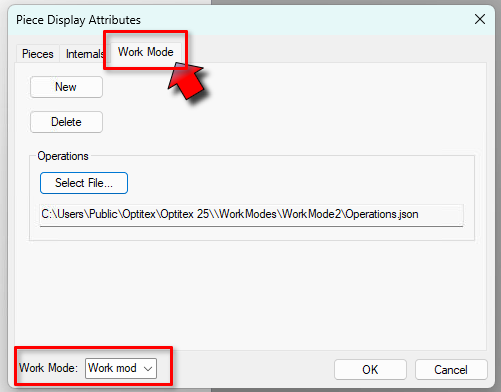
For more details see: Marker Work Modes
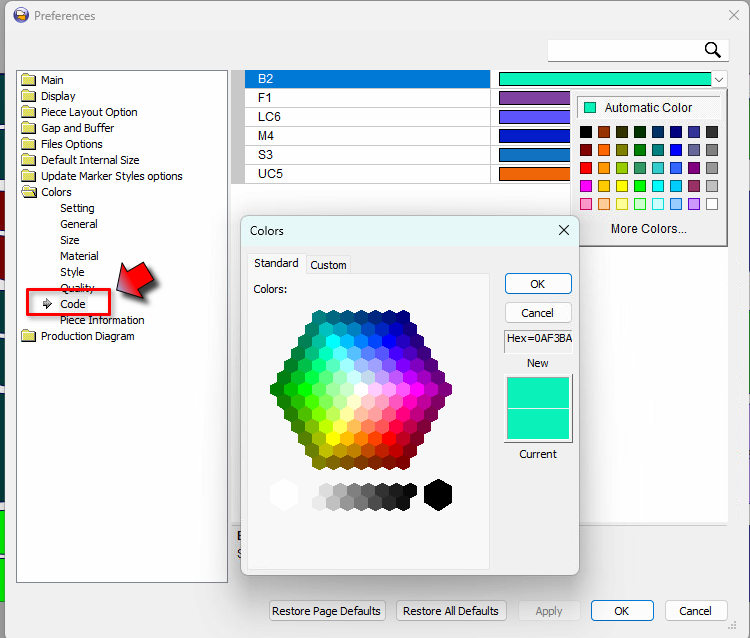
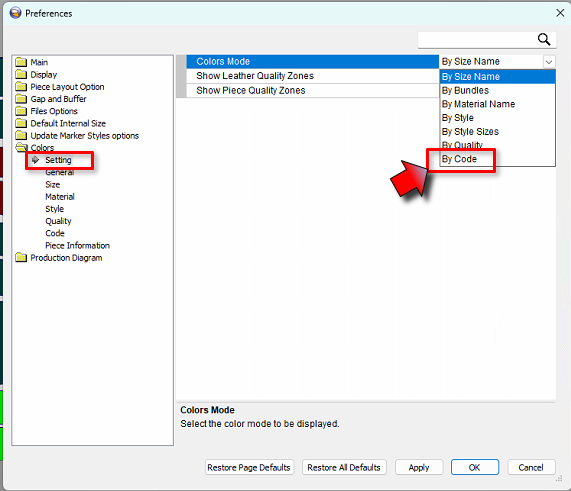
New piece color: by piece code
A new preferences option allows you to set piece code colors and to display the piece colors by code:
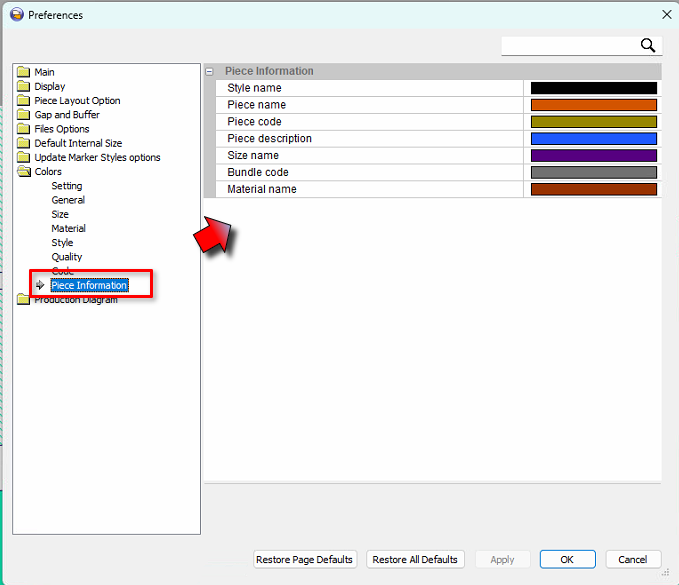
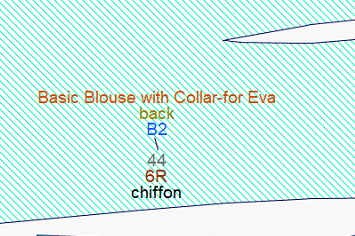
Custom Colors for Piece information (Annotation) Text
A new preferences option allows you to set different colors to piece information elements:
Click each color to open the color picker and select the color you want.
New Batch command: Duplicate Placement
A new batch command has been added allowing you to implement the Duplicate Placement function in a batch process.
Batch Command: @DUPLICATE PLACEMENT
This command is also available in Optitex Script Builder overview
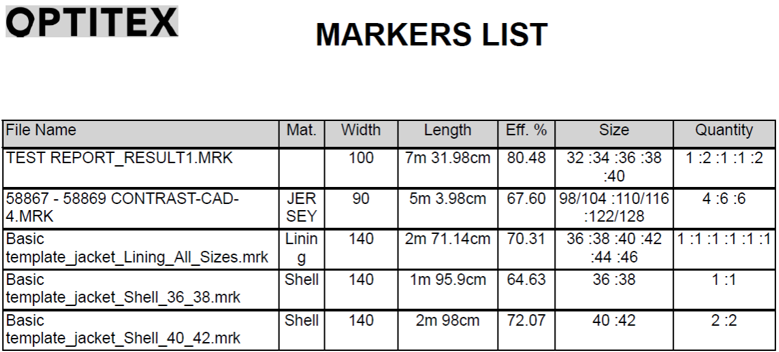
Report Writer New Report Template – Markers List
A new template has been added to the Report Writer, allowing you to generate reports that include Marker Order details and results.
Reports can be created for a single marker or multiple markers simultaneously.
The template is located under C:\Users\Public\Optitex\Optitex 25\Marker Report Templates.
Restoring Old Open / Save as File Dialogs
By users request old Open File and Save As dialogs can be now restored using an ini parameter.
To apply you have to add the line OldOpenSaveDialog = 1 under the section [CommonUI] in the Optitex25.ini file.
Where:
OldOpenSaveDialog = 0 = New dialog (default)
OldOpenSaveDialog = 1 = Old dialog
Note: This affects both PDS & Marker
Script Builder Updates
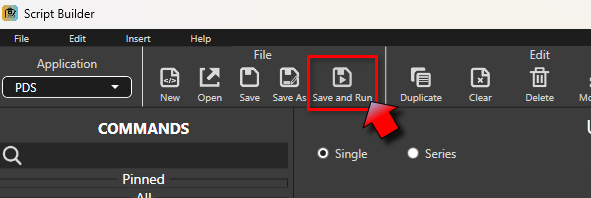
New Tool: Save and Run
A new option has been added to the Script Builder: Save and Run
This scenario allows you to save the current script and immediately execute it in one step, streamlining the work process.
For more information see: Creating a script for a Batch process
Added capabilities and enhancements
Improved file selection options
-
Select more than one file
-
Select files from different folders
-
Replace files
-
Add files
-
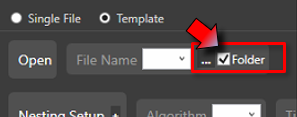
Select an entire folder
-
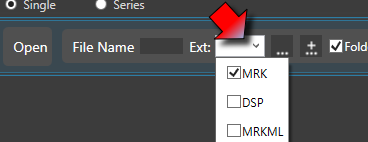
Filter by Extension
For more information see: Addressing multiple files
Argument Duplication
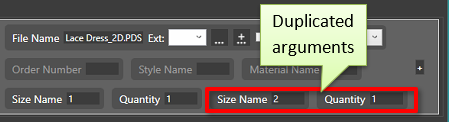
You can now duplicate arguments within the script, for example, size and quantity
For more information see: Duplicating Argument
See also: Previous Optitex Versions