Auto Nesting Setup
You can use the Auto Nesting Setup dialog to select the Nesting Algorithm you want to activate and to define required nesting options.
 For more information , see Nesting
Your Pieces.
For more information , see Nesting
Your Pieces.
Icon & Location

To view the Auto Nesting Setup dialog:
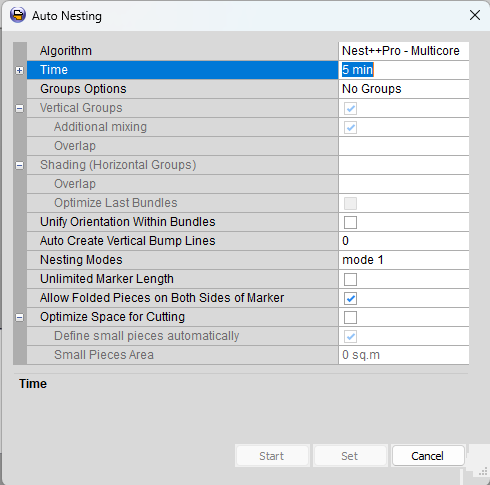
Algorithm: select which algorithm to use for Autonesting.:
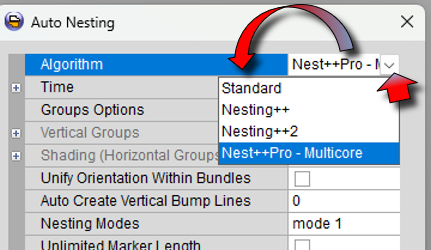
For more information see: Nesting Your Pieces
Time: set the time you want the nesting to run:
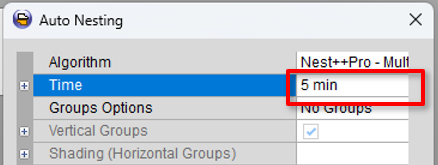
 Note: As a rule, the more you let autonesting run, the better the chance to get higher efficiency (depending on the geometry of the pieces, some markers, will not improve over time).
Groups Options: if necessary you can nest in groups.
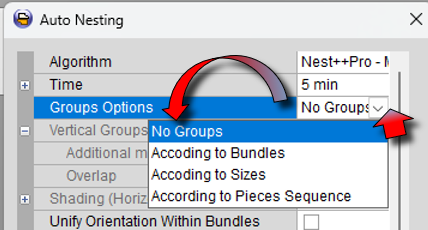
For each grouping option additional setting are available.
Note: Enforcing groups will reduce the overall efficiency of the marker.
Auto Create Bump Lines:
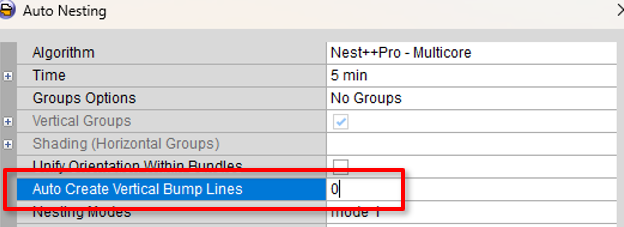
If needed, you can create regular vertical Bump Lines at the specified interval. The nesting is stopped and continued after each bump line, where the newly nested pieces do not cross the bump line. this will continue until all pieces are placed.
Note: Enforcing separating Bump Lines will reduce the overall efficiency of the marker.
Nesting Modes Nest ++ pro nesting modes.

Note: Please use nesting Mode 1. Other modes are not appropriate for Optitex use.
Unlimited Marker Length:

Unlimited Marker Length will allow best operation space for the nesting. It is recommended to have it checked.
Folded Pieces:
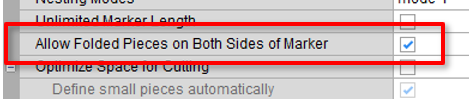
Select Allow Folded Pieces on Both Sides of Marker, to have pieces folded on the upper and the lower sides of the Marker in the autonesting processes.
Note: The Folded Pieces option only appears if the marker is number of plies in Marker Definitions is higher than 1.
Optimize Space for Cutting:
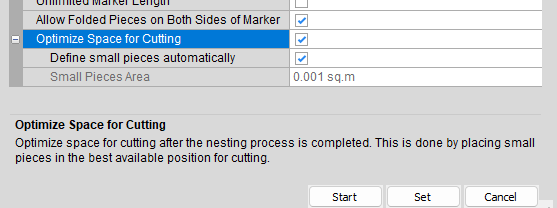
This option may be used if you have such a geometry that includes large space between large pieces and small pieces placed inside those spaces.
If selected, the algorithm will try to place the small pieces centered within those spaces, which is better for cutters.
You can let the system decide autocratically which pieces will be considered small, or manually define the small pieces area.
See also: