Creating a Stretch Map Pin Comment
You can create Stretch Map pin comments which include the specific point Stretch view information
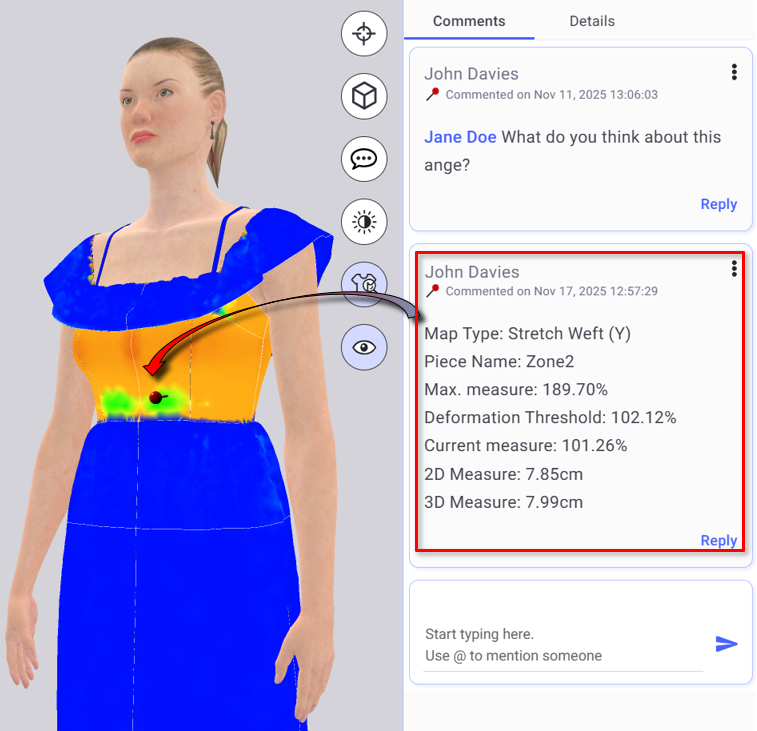
Except for the Stretch information, these comments behave like other pin comments
Creating a Stretch pin comment:
-
Switch to one of the Stretch views
-
Navigate to the angle and zoom level where you want to pin the Stretch information.
-
Double click the point you want to pin. The pin shows and the Stretch pin comment is created on the comments panel.
 Note: Clicking a stretch pin comment on the comments panel, restores the 3D view's angle and position, but keeps the current view (Fit analysis, or regular view)
 See also: Pin Comments for GLB files overview